Table of Contents
Fancy Patches, Straps & Pockets:
You want to avoid Non-Manifold geometry like the plague. Seriously... its not worth the short cut; you might think, "ah, who cares, no one sees it once its textured right?" but you'll spend all of this time welding the pockets to your mesh, and your mesh will be pretty much useless unless its done correctly. Non-Manifold geometry is hair ripping stuff. Most importantly, you can't sculpt adjustments later on to the mesh if you need to make any, so either get the geometry right at this point or omit the pockets, straps and miscellaneous doo-dads all together. Like I mentioned previously, before embarking on this step ask yourself, "is it really worth it? Do I need fully functional pockets patches and straps?"
Patches
Lets start with a simple patch. Patches are sewn onto an already existing surface of fabric. The Non-Manifold geometry occurs where there is a redundancy of geometry; in this case where the patch meets the garment. Instead of creating a nice quadrangular grid, you end up with vertices projecting edges in three directions instead of two. Here's an image I stole from the Autodesk website. The first example (left) is what most commonly happens when you attach bits to your garment. To combat this, we will eliminate the two pieces of mesh that meet, and merge the vertices to attach the patch. Simple!
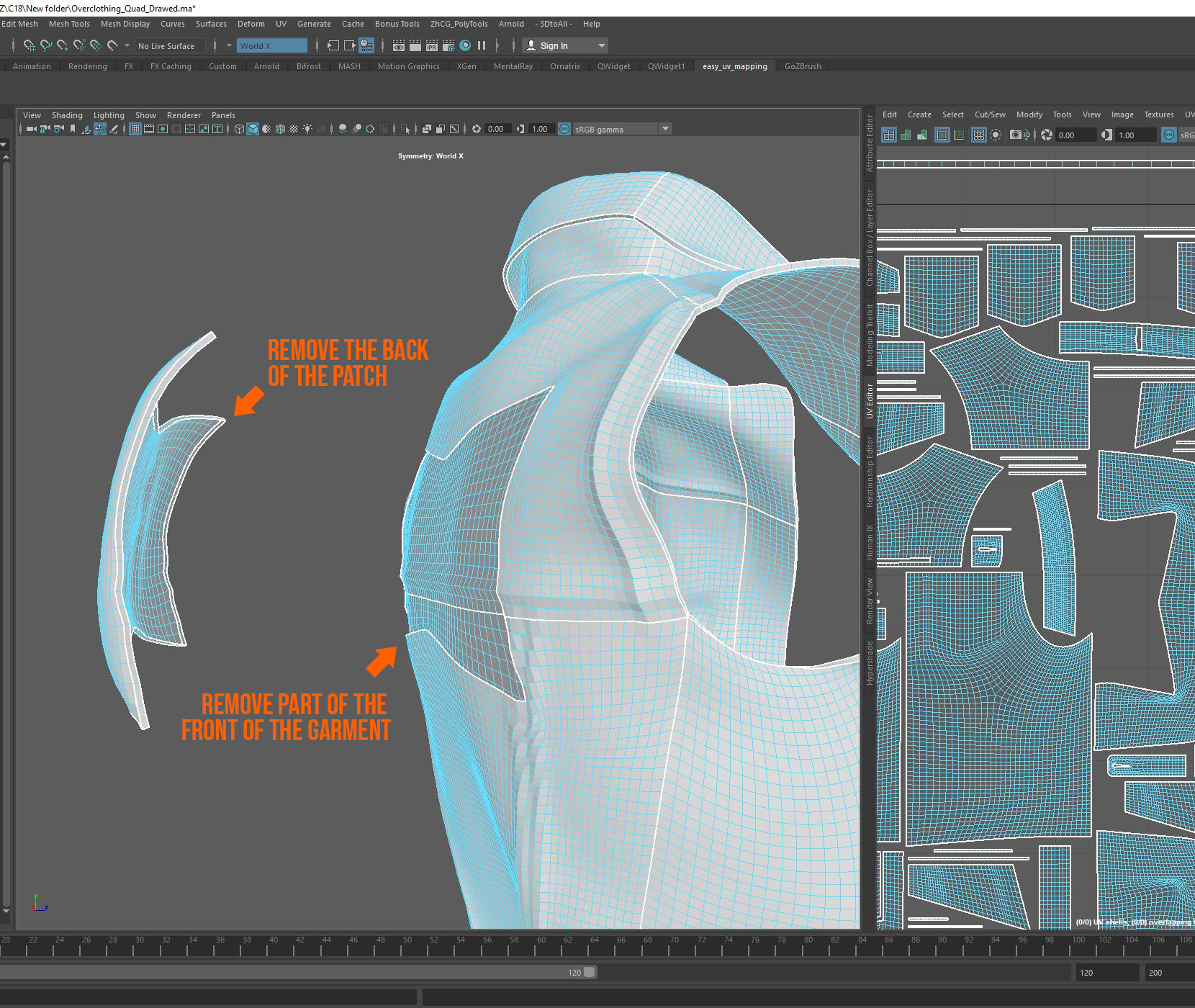
This vest has a large patch at the back. The shape and size of the patch and the shape and size made by the missing faces on the front facing faces of the vest are more or less the same:
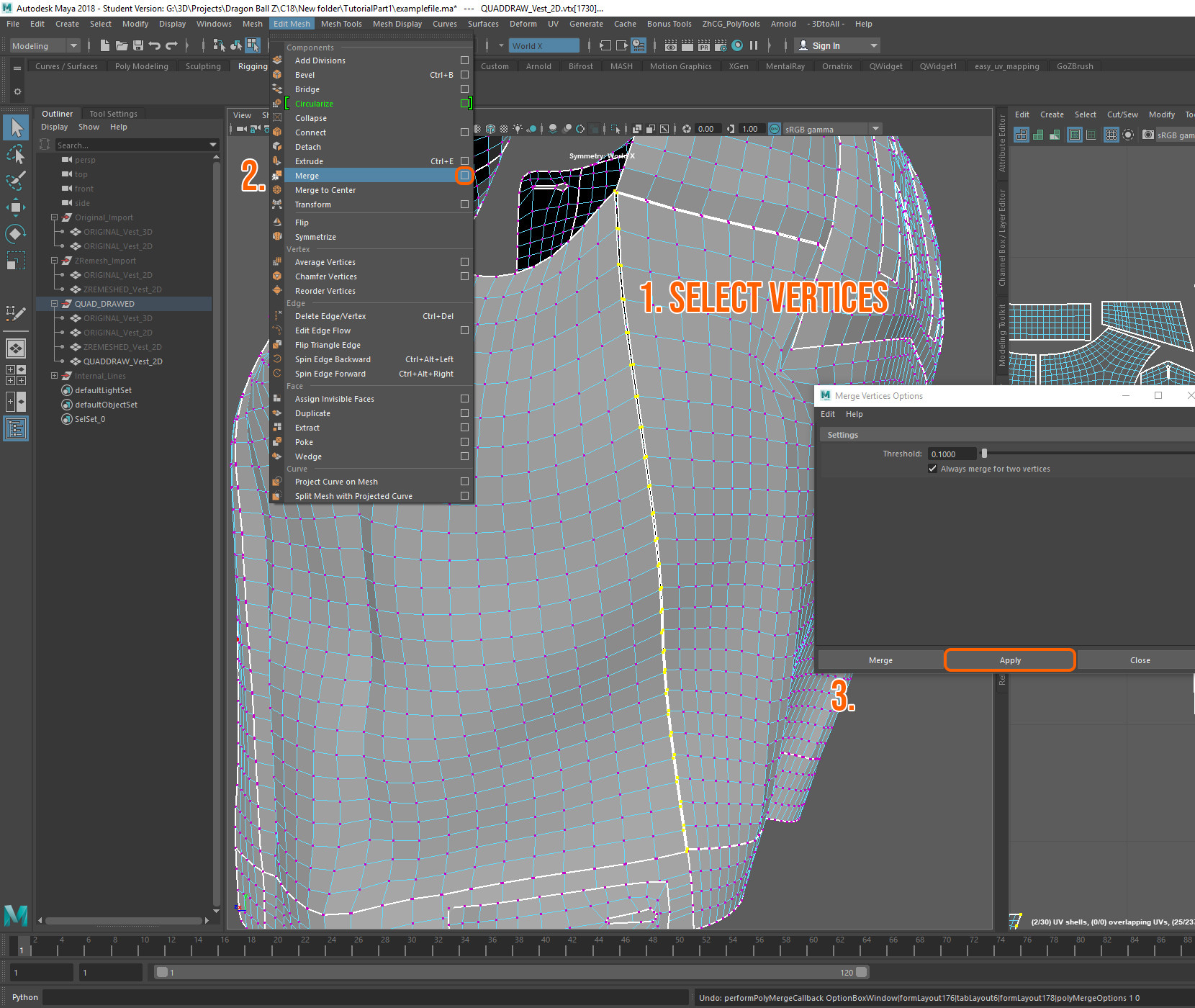
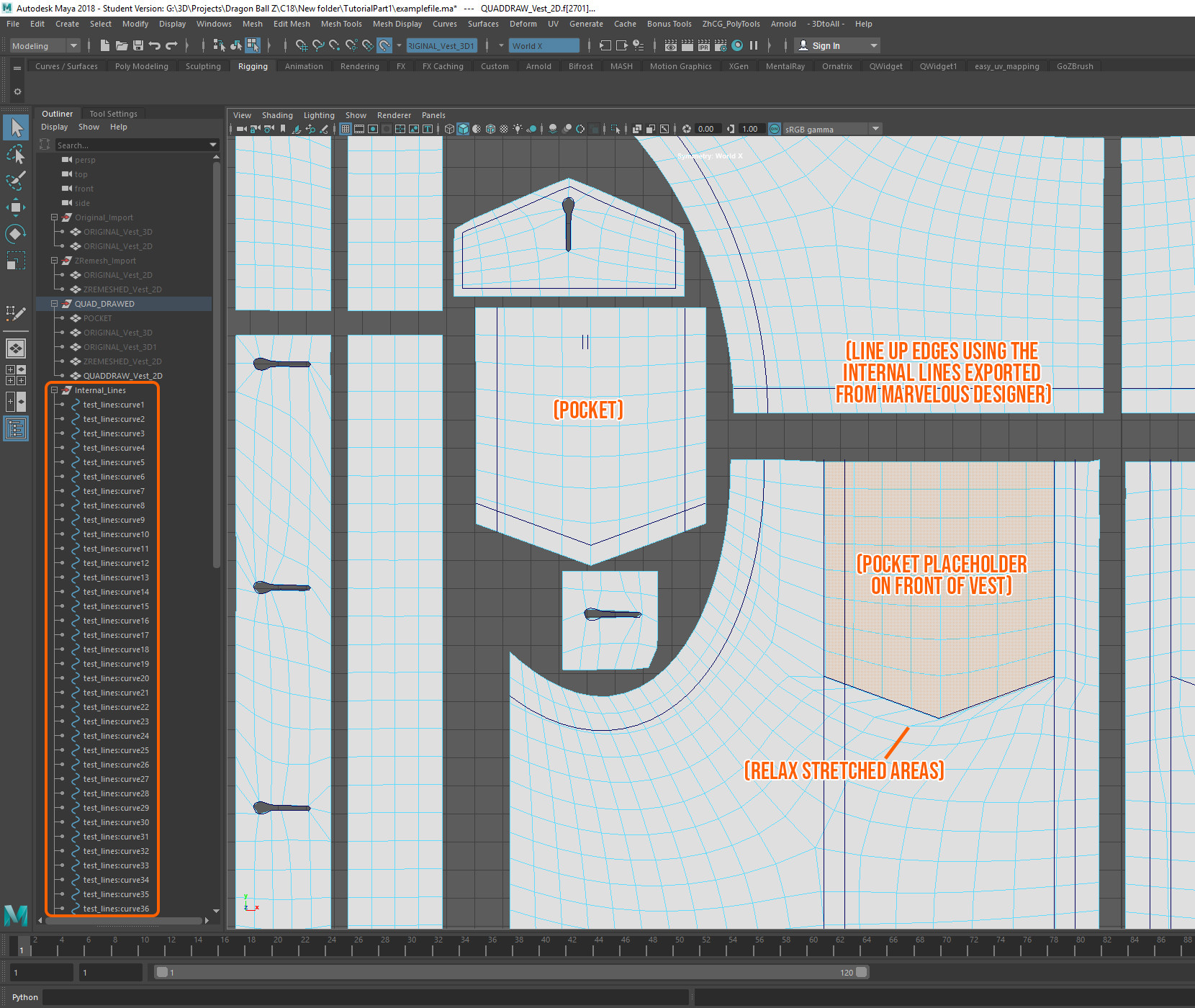
That painful step we did earlier in Part 2, lining up the grid of the main garment mesh with these pieces is now paying dividends. Now when you sew your patch on, you will avoid any awkward stretching caused by the Merge command. Now you can place the patch back in place, select the matching vertices and merge them. If your vertices don't quite line up (it happens, especially at this level of detail), you'll have to manually do them two at a time.
TIP: If merging becomes rather cumbersome and time consuming, go to Edit > Delete by Type > History. Doing that every once in a while when things get sluggish, should speed the process up along.
A quick note about stretching:
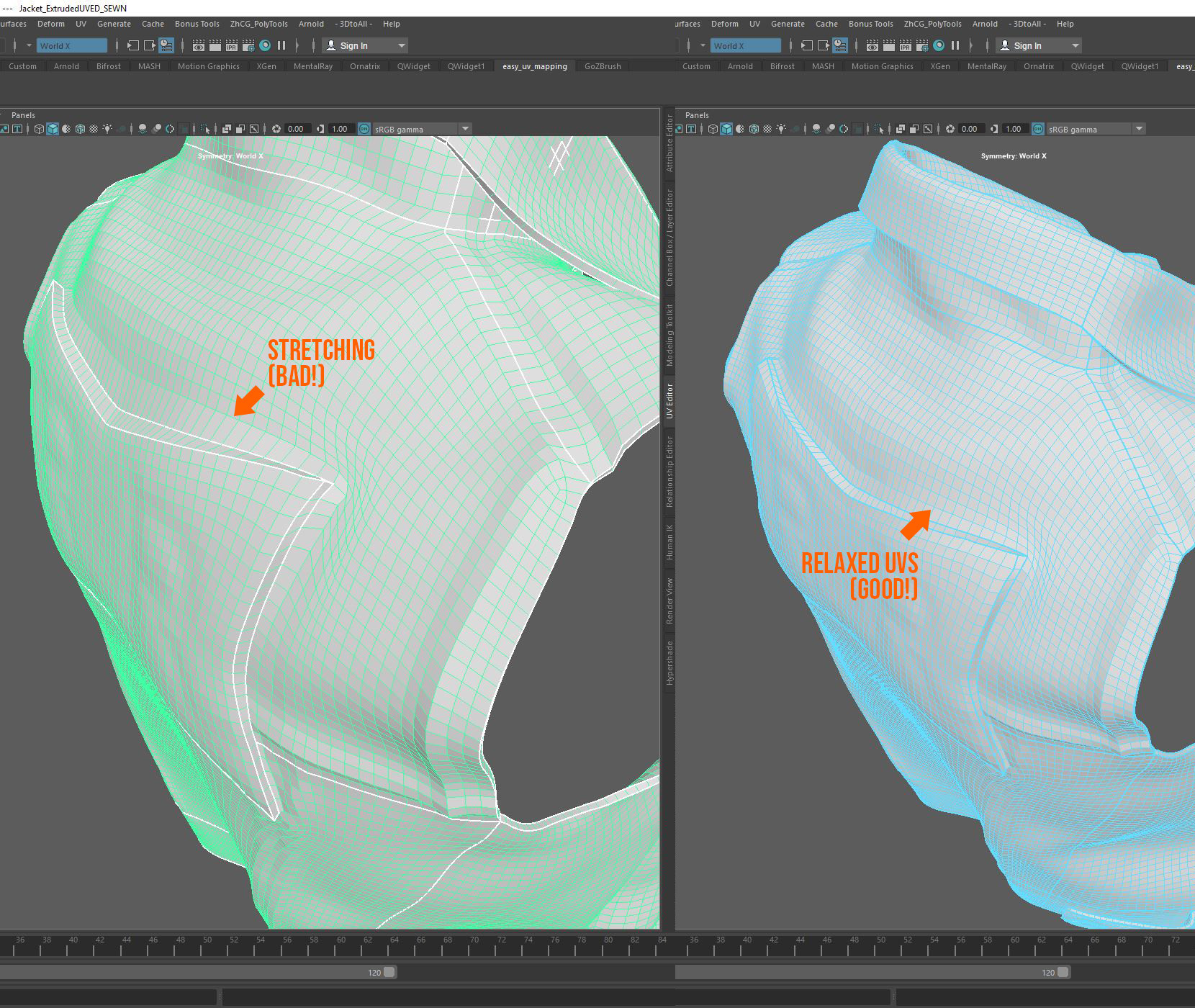
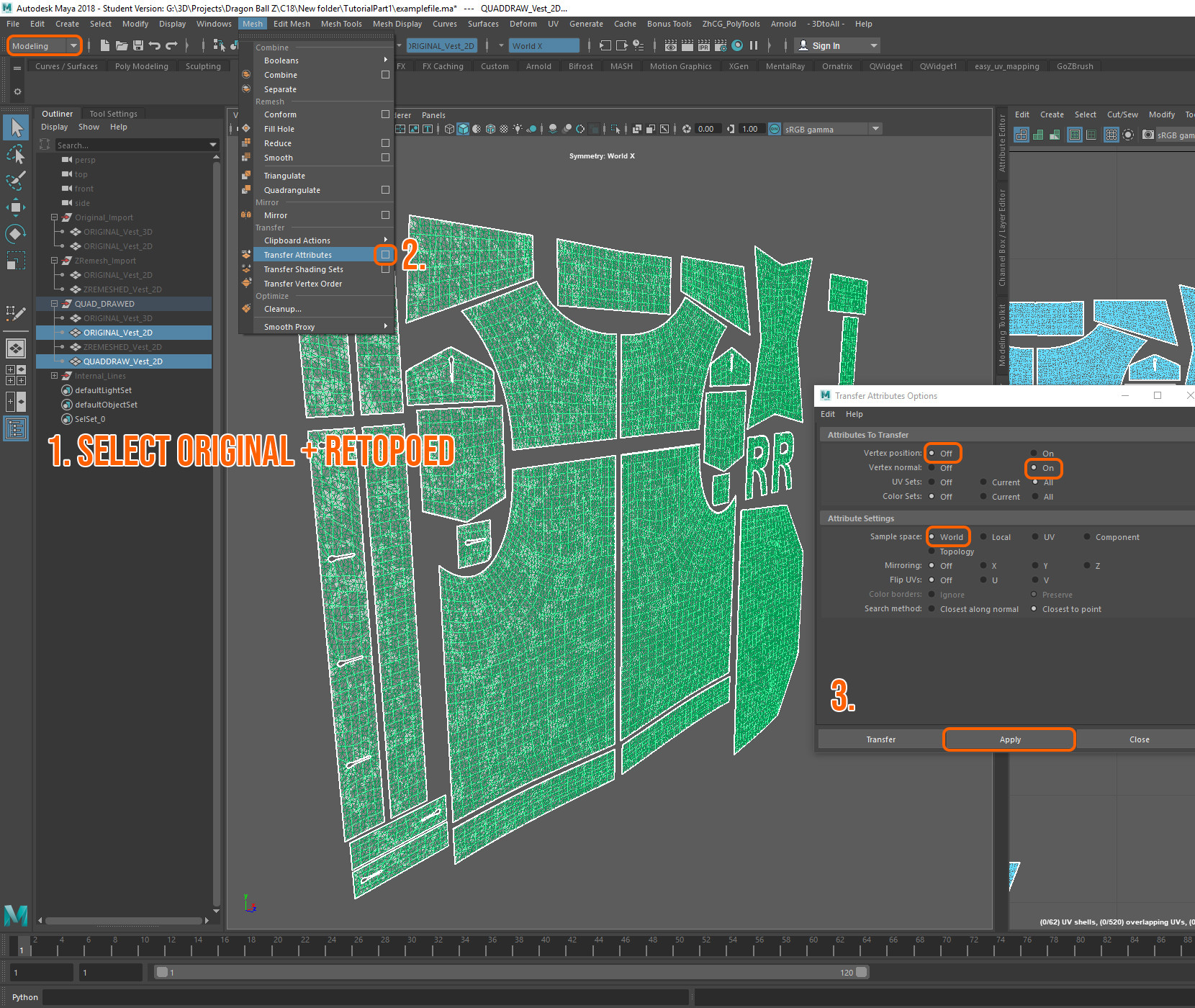
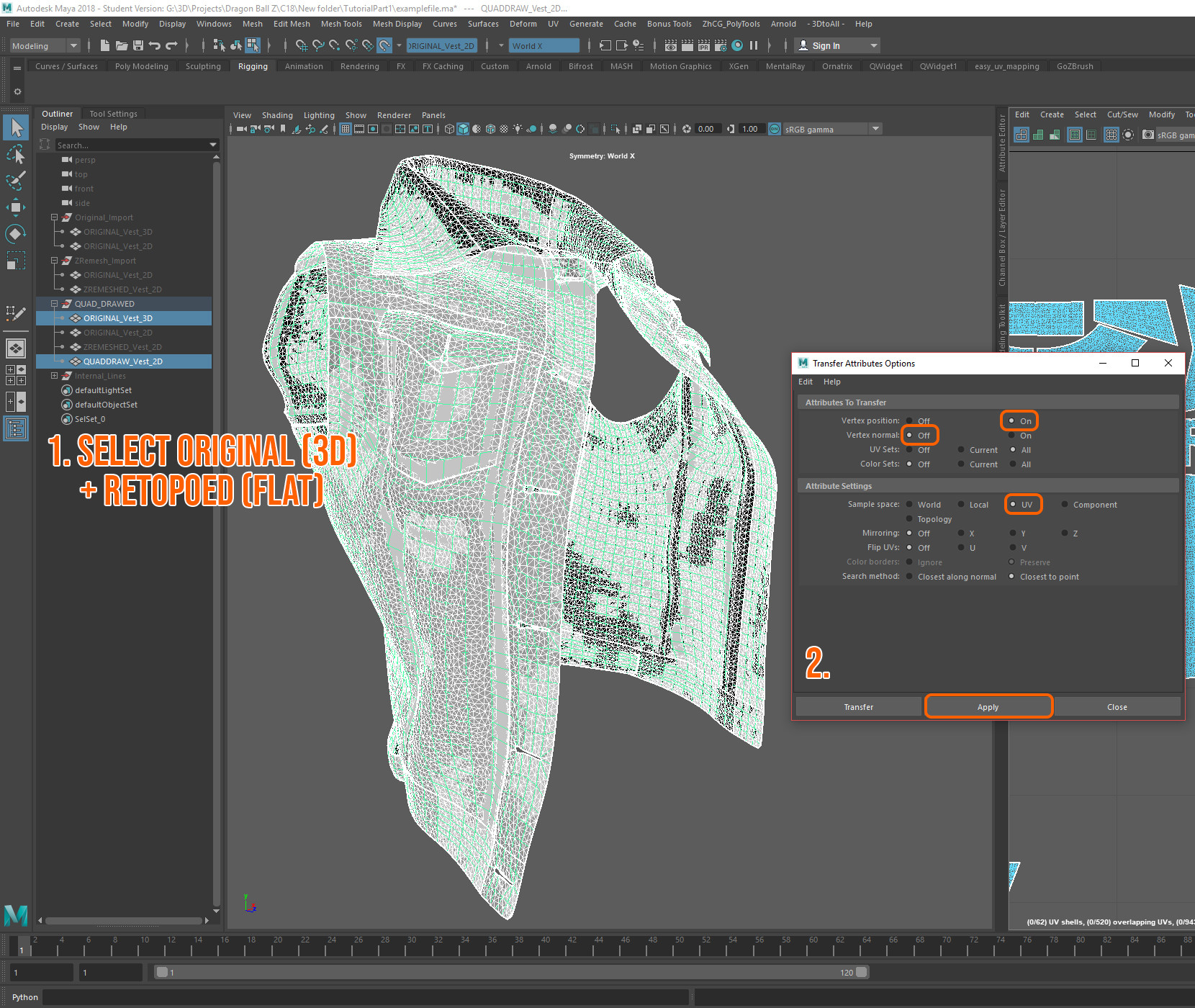
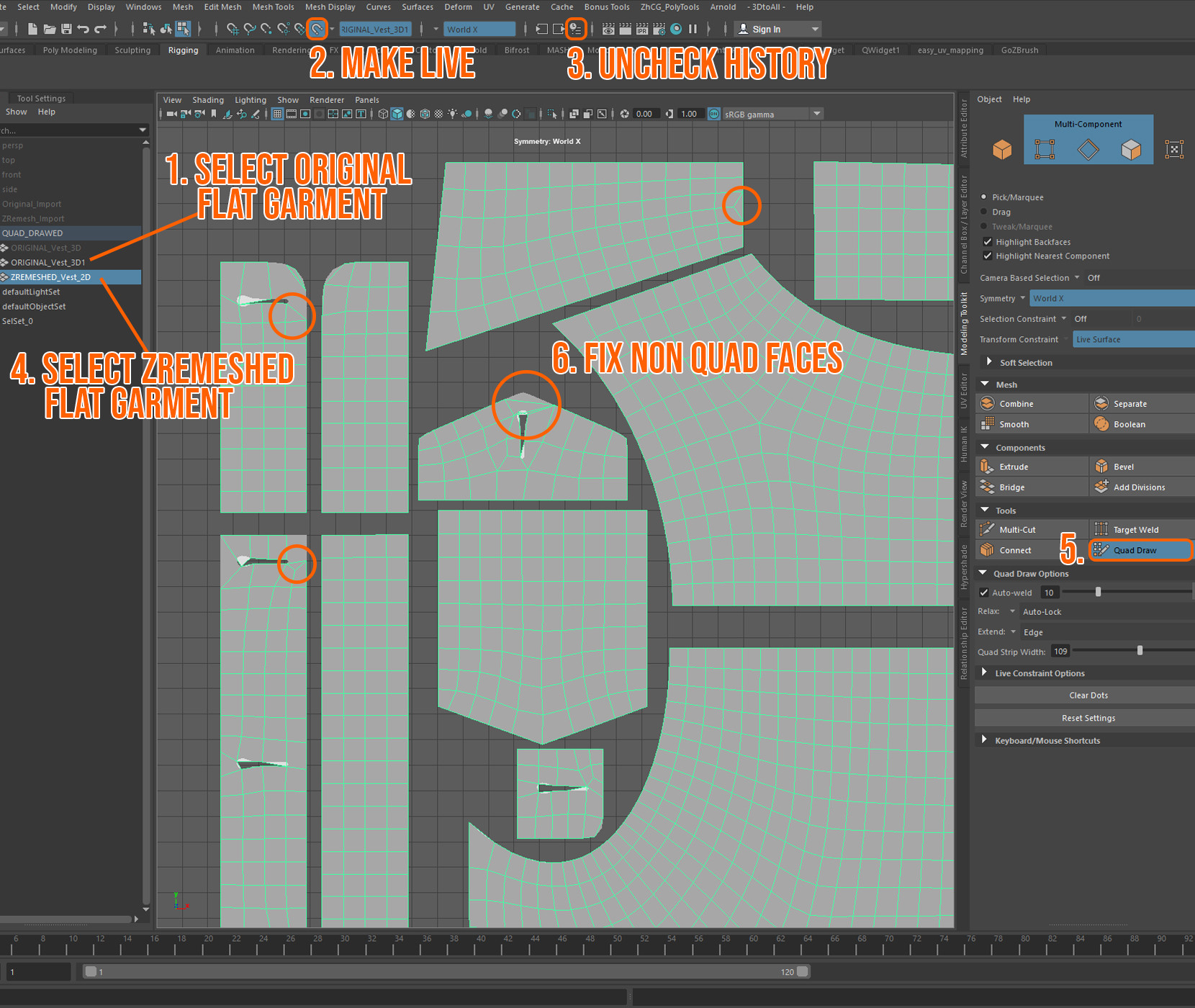
Stretching inevitably happens when the vertices of the patch (or any piece) and the hole in the garment don't quite line up. You can devote a lot of time and energy getting those pieces to fit just right before cutting and sewing them together but sometimes, you just don't quite get it right. Here is an example of where the shape of my patch did not quite fit the Jacket. Even though I lined the patch to the jacket up perfectly before transferring attributes, the process still turned out less than perfect. To solve this I worked on the stretched areas by relaxing them. The goal is to make the area relatively even whereby the squares are roughly the same size in comparison to one another. My example here is not perfect (the corners are a little sorry on the eyes) but I'd like to think that its good enough. At some point you have to let some things go so as to move onto the next step without losing too much time.
Tip: Quad Draw offers a great relaxing tool. You can also relax the lines with more accuracy using scripts. I made my own but you can get a few similar features from ZhCG's Poly Tools .
Straps pretty much follow the same process. In the case of the vest, two buttoned straps adorn the bottom back border of the garment. To be completely honest, I never really noticed these things until I took a closer look at a jean Jacket I had and wondered, "what on earth are they even there for?" In any case, creating them meant for a more realistic and true to source garment (plus, in the original series C18 had those loopies drawn on. For a simple Manga, that's a whole lot of commitment to useless denim loopies!). To digress, some elements are undeniably important in communicating the "it-ness" of a thing, in this case denim apparel (they put those useless straps EVERYWHERE!)
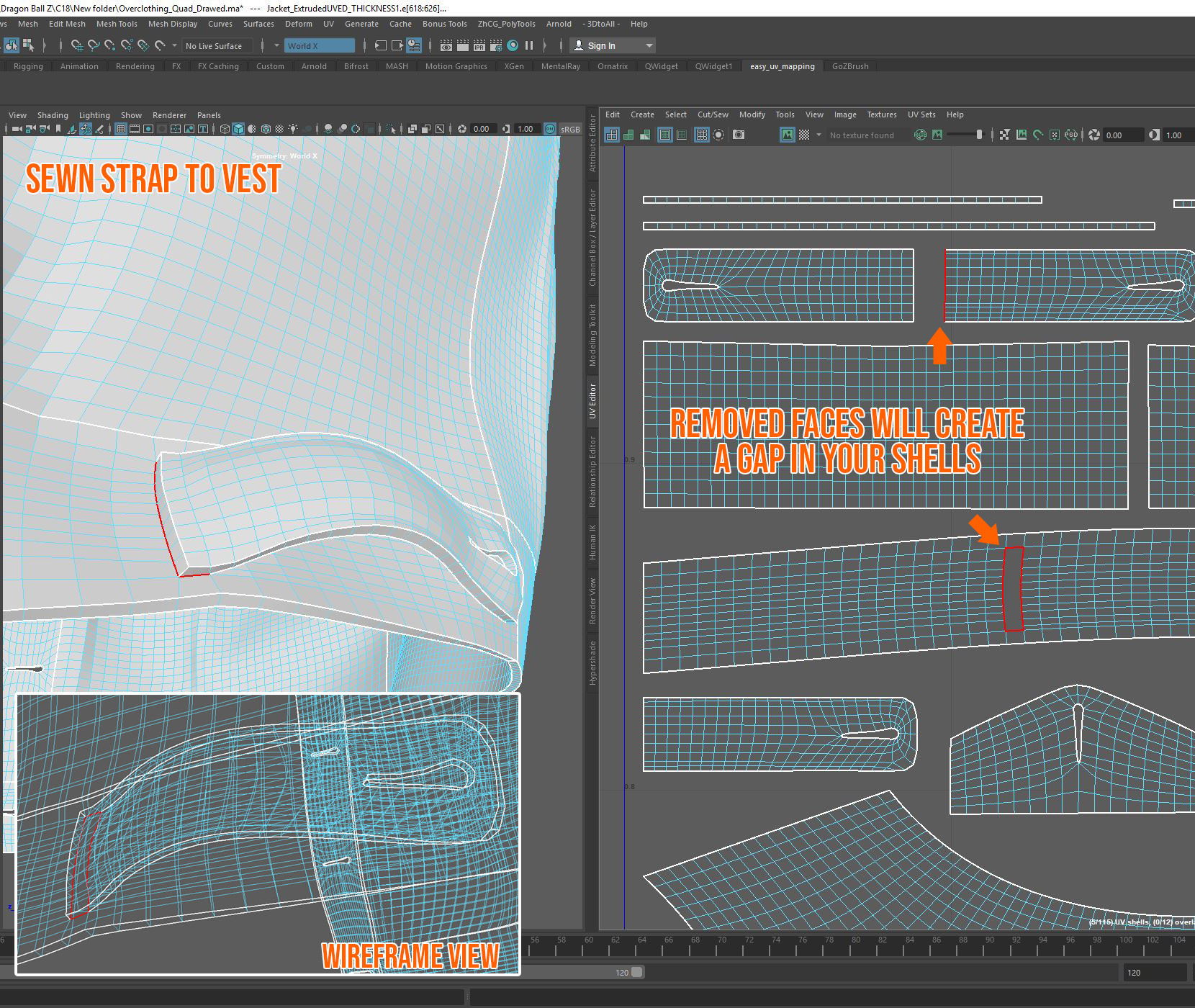
Attaching the straps is fairly simple. Start off by removing the faces that will be sewn to the garment. In this case, all I needed to remove was one row of faces on the inside shell, closest to the straps end, where it will be sewn to the vest. Having counted the faces, I know I have exactly 10 vertical faces to remove on the corresponding area of the vest's main geometry.
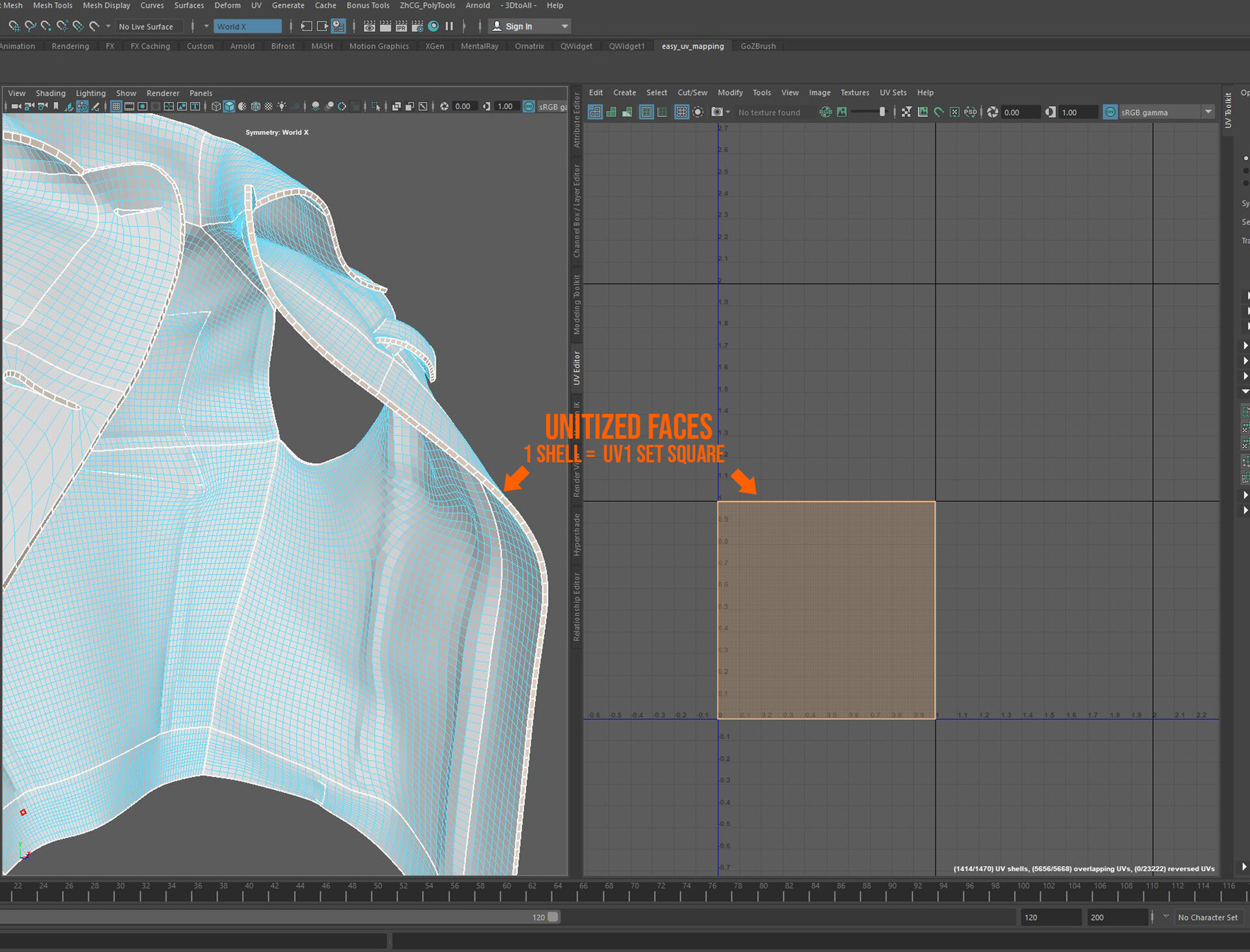
TIP: selecting the faces in the UV editor is sometimes a handy way to counting and determining what needs to be removed. Its also a great way to count vertices/edges and get a simplified view of the mesh. A word of caution when deleting faces though: deleting them in the UV editor will delete the respective UV faces but not necessarily the mesh faces. If you use the UV editor to select faces to delete, deselect and re select a single face in the Viewport before hitting the delete key. This will ensure that both the mesh and the UV faces are deleted.
Pockets
Pockets are a little more complex than patches and straps. If you've opted for the hyper-realistic and fully functional pocket as averse to fake pockets, you must retain the important fact that every pocket has an inside and an outside. That means, unlike patches, you can't just delete internal faces.
To start, I always move my pockets away from the main garment mesh. This helps me get a better view of what it is I am actually working with. To keep a track record of the placement of the pocket I pick a single axis (X, Y, or Z) to move the pocket away from the garment. Whenever I need to move the pocket back into place, all I need to worry about is sliding it back along that same axis.
Now, instead of removing the inner mesh like we did with the patch, we need to retain most of it so that whatever slips into the pocket doesn't fall into a void of back-facing normals. Instead, we are going to do something similar to what we did with the strips. By removing a "U" shaped strip of faces along the back edge of the pocket and a similar scenario on the front facing mesh of the vest, we can then safely sew the two pieces together without risking any non-manifold geometry. Just like the strap's 10 to 10 faces, we are going to ensure that the same number of faces are removed behind the pocket and on the vest (ensure the shape you have on the front face of the garment lines up with the pocket!) This is why we made those adjustments earlier to match the shape of the pocket to the corresponding area on the vest. Now when we sew the two together, not only do the vertices line up, but we avoided some terrible disasters caused by UV stretching. Generally, you want your UV maps to mimic your final mesh as much as possible, by keeping the vertices in more or less similar sized squares to one another.
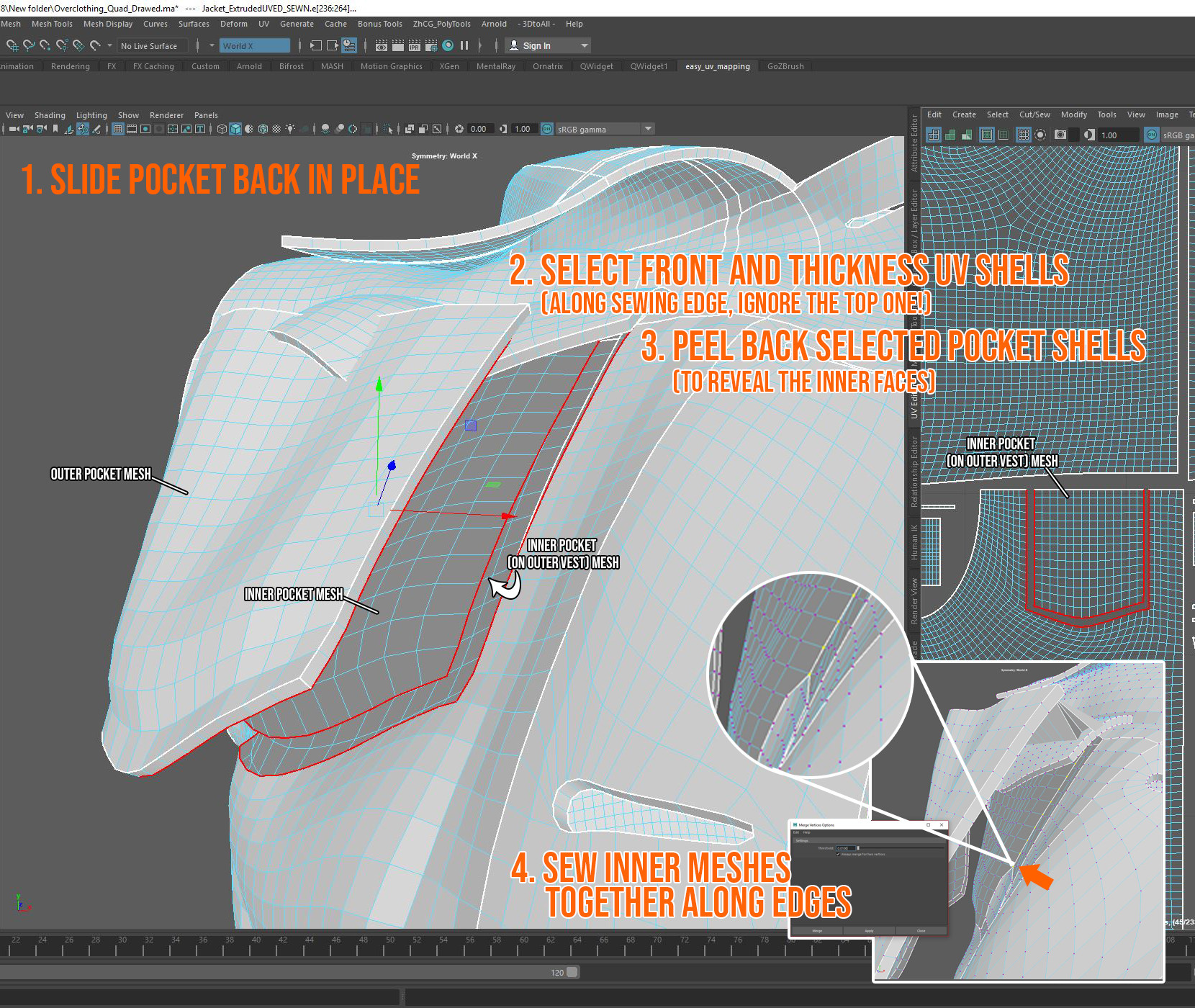
Ok, lets see if I can communicate this part as clearly and as concisely as possible. The first thing you want to do is sew the inner remaining faces of the pocket to the outer remaining faces on the vest. This is going to create a mini pocket inside your outer pocket that will actually hold items. I started off by sliding my entire pocket back onto my vest (1). The vertices line up perfectly, so we are good to go.
I then selected the front and side UV shells of the pocket (omitting the top thickness strip)(2) and peeled them back (again, along a single axis) away from the vest(3). This is so that I can see what I am doing while merging the inner parts together. You don't want to select the top strip because that piece is already merged to the inside mesh. Now that you can see what you are doing, merge the inside mesh of the pocket to the corresponding outside mesh of the pocket(4), like so:
And just in case I wasn't quite clear enough - and seeing it in real-time is so much better - here's an example of what the pocket looks like with its layers expanded and the inside pocket meshes sewn together:
Now you can go ahead and sew the external parts of the pocket to the vest.
And there you have it! Fully functional pockets! You can sew on the pocket flaps the same way we did the straps earlier in the tutorial.
With all of the pieces sewn and merged together, you can test out your mesh for any non-manifold geometry in the Mesh Cleanup section (by telling it to select problematic vertices. I tested my vest quickly by going into the Sculpt section and tried to move any surfaces around with the Grab tool. Everything worked with no error alerts, so that was reassuring :)
Faking Pockets
So you've looked through the steps to make actual pockets and realize that for your situation, "eh, it's not worth the effort." I get it. When I redid the topology of the skirt, there definitely were pockets I faked, namely the two front pockets that are super tiny, tight as heck, and for most women's jean skirts, are actual fake pockets anyway (which might I add, is super annoying when clothing companies do that!)
The good news though, is that fake pockets are a lot quicker to make, so when it comes to 3D modeling, it might be considered a good thing.
To fake pockets, select the area you wish to add a pocket on your garment, CTRL+E to extrude. Add 2 divisions . Then at the top of your pocket, select the faces you would like to cave in, and extrude them inward.
Buttons
Buttons are essentially the same thing. All you need to do is ensure that the little nub at the back of the button takes up 1 square face. You can then remove a single face where the button will go on the garment and remove the face at the butt of the button's back nub. Line them up and merge the 4 matching vertices together.
A Serious Talk About Seams
At this stage, if you are happy with your model and its UVs you can go straight to texturing. If I was creating a pristine looking garment with no rips, tears, frays or serious displacement values at the edges, I'd do the same. However, because we are working on a slightly worn piece of denim, it is expected that there are significant imperfections along the edges. This is problematic for our current UV layout as any significant displacement values created by these imperfections will collide with one another along the UV borders of those edges.
To solve this problem, we are going to focus our attention on those problem areas. First, lets look at how a Jean jacket is actually constructed. In the example image below, we see that the seams are sewn outside and inside the jacket. Essentially the jacket maker sewed a flap around the inside and outside of the opening to give it greater resilience to the elements. This is great news for us because we are going to do the same with our model. As a rule of thumb, wherever you see stitching, that's where we will define our UV borders.
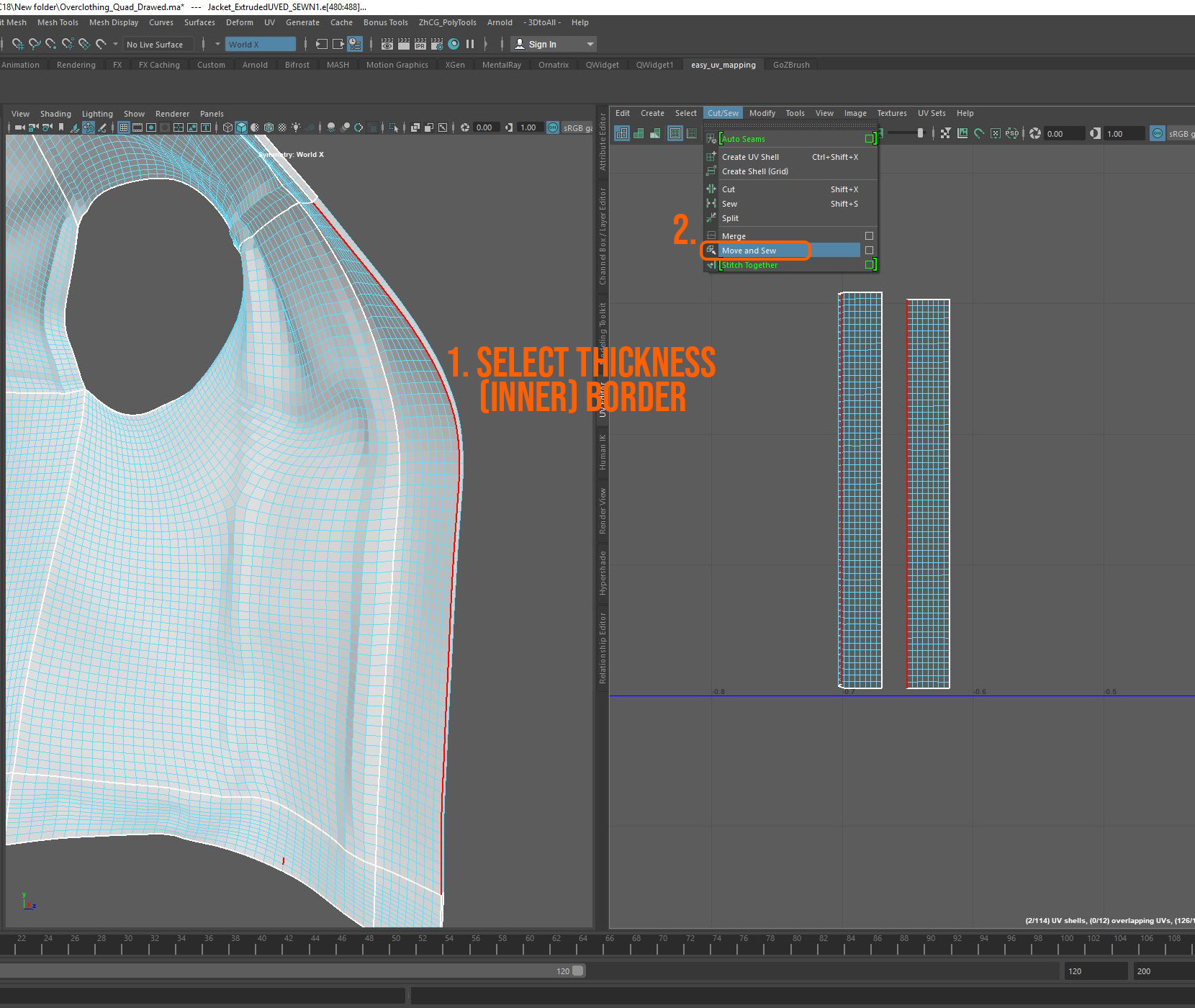
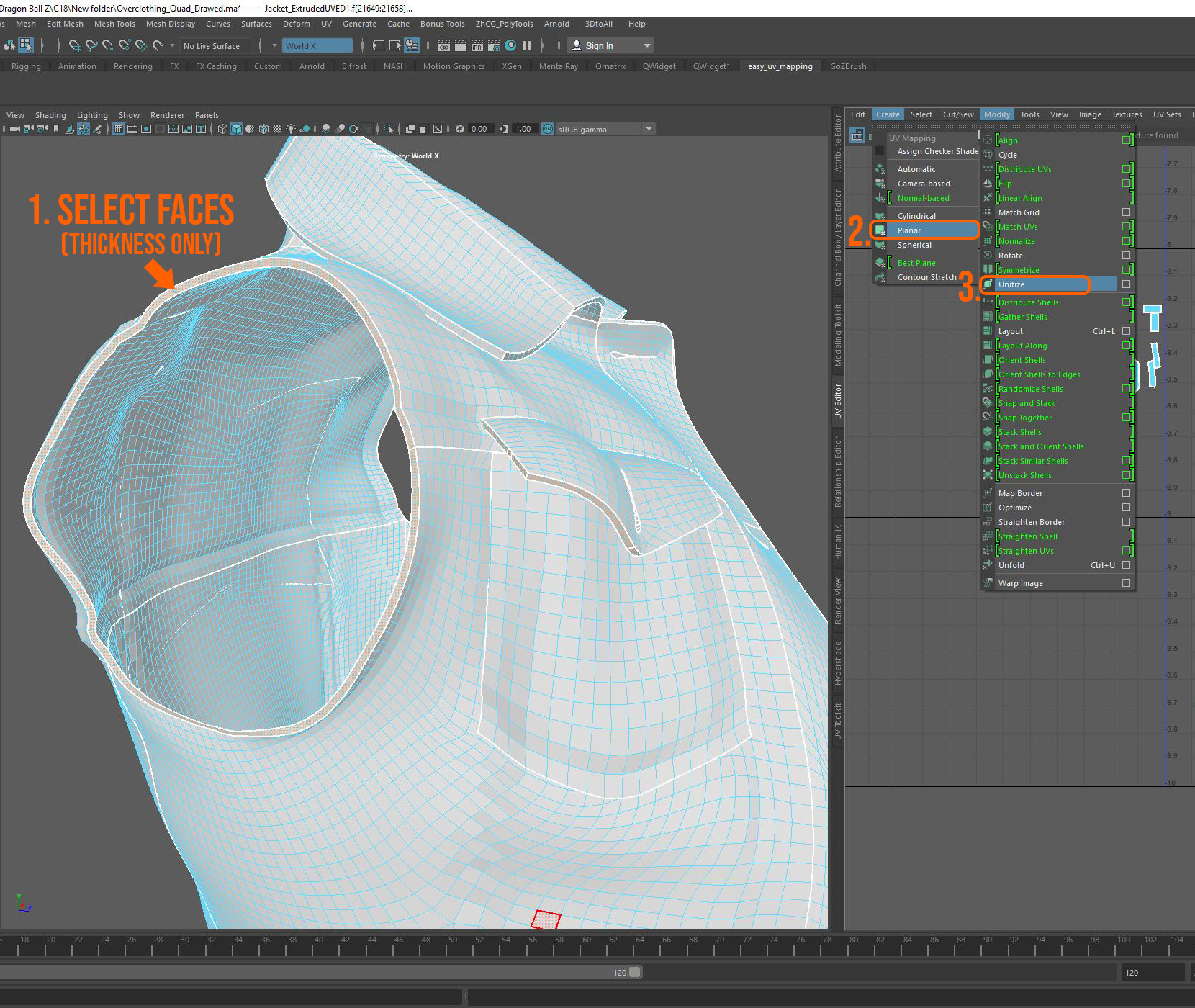
This is where making the thickness UV strips correspond with Marvelous Designer's UV shells simplifies your life. Now, all you have to do is select your border UV shells (1), drag them to the side in the UV editor to better see them (2). and Move and Sew them together (3). You want to sew the border edges that connect with the thickness shell. Don't forget to Layout your new shell!
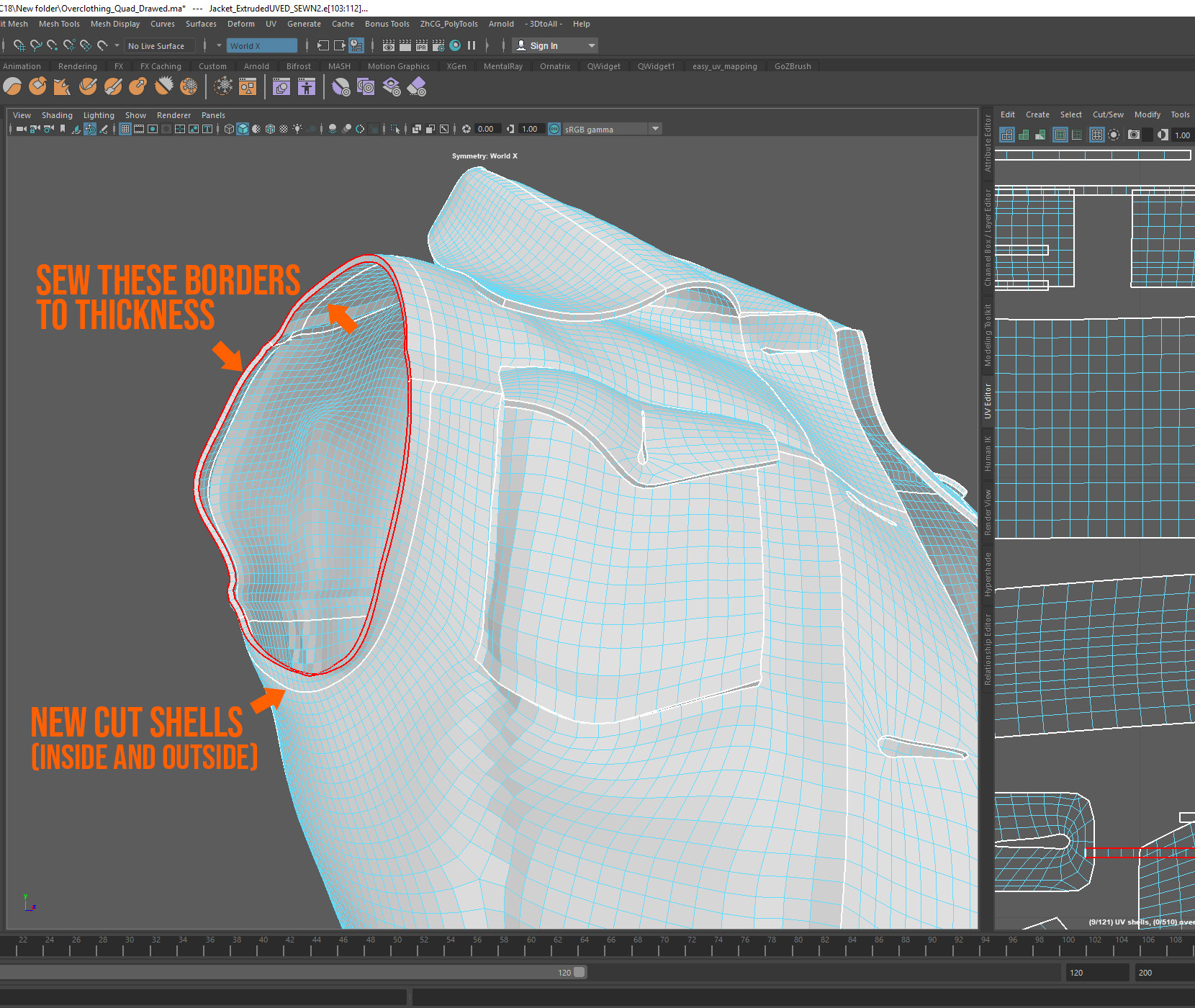
As previously mentioned, you only want to do this where the garment might show some wear and tear (generally around its borders). In the case of the Jacket, I did this on sections of the jacket's opening, the collar and the arm holes. In the case of the arm holes, instead of sewing the thickness border edges to the inside and outside shells (which would have made some seriously awkward and large UV shells) I split the inner and outer shells approximately 2 vertices inward (or outward) creating a subsection to these zones and sewed those pieces to the thickness in order to mimic a sewing seam.
And that's a wrap! I hope you found this 5 part tutorial useful. Once you understand how it all works, it goes pretty fast (I promise!) and the more experience you have working with retopology the less mistakes, requiring back-stepping, you'll make.
I may look into extending this tutorial and continue the vest workflow into Texturing. Please let me know in comments if you would like more breakdowns such as this one and I'd be happy to give it a shot.
If you have any questions, feel free to leave a comment and I'll try to answer them as best as I can. If I can't answer something, Ill try to find someone who can.
Cheers!
Emilie